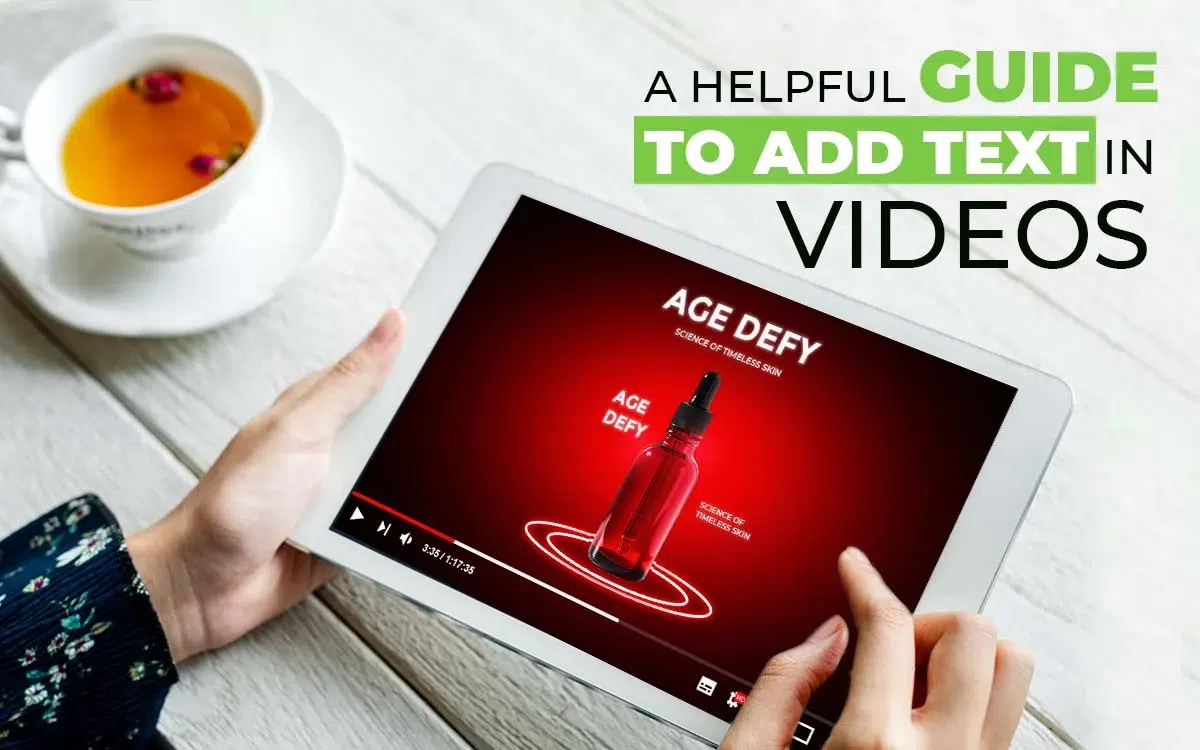
Adding text to a video refers to the words that appear in different parts of the video screen. It helps viewers understand the brand message fast, even on mute. In e-commerce, it plays a big role—text highlights product features, guides attention, explains benefits, and supports buying decisions.
Different types of text include titles, subtitles, callouts, and moving text. While using text, use clean fonts, strong contrast, simple placement, and steady timing. Professionally used texts in videos make videos easily consumable, reliable, and contribute to increasing engagement and conversion.
What you’ll learn in this article
What Does Add Text in a Video Mean?
Adding text to a video means typing and placing words in a video, which is spoken or delivering a brand message to viewers to extract information to make a decision, understand content, or connect with the context. Video text includes titles, subtitles, callouts, brand elements, etc.
Professionally added texts in videos explain the content topic faster, guide viewers’ attention, and make the videos understandable even with a mute format or a small screen. Here is what texts do to a video.
- It makes viewers from different nationalities connected.
- It highlights features and benefits that set your product apart.
- It highlights and guides viewers to take action.
- It makes viewers remember your brand.
What Types of Text Can You Add to Videos?
The type of text you can add to videos ranges from titles, subtitles, annotations, lower-thirds, to labels or promotional texts, etc. It depends on what you want viewers to notice, impart, or remember. The most common 11 types of texts we often see in videos are as follows.
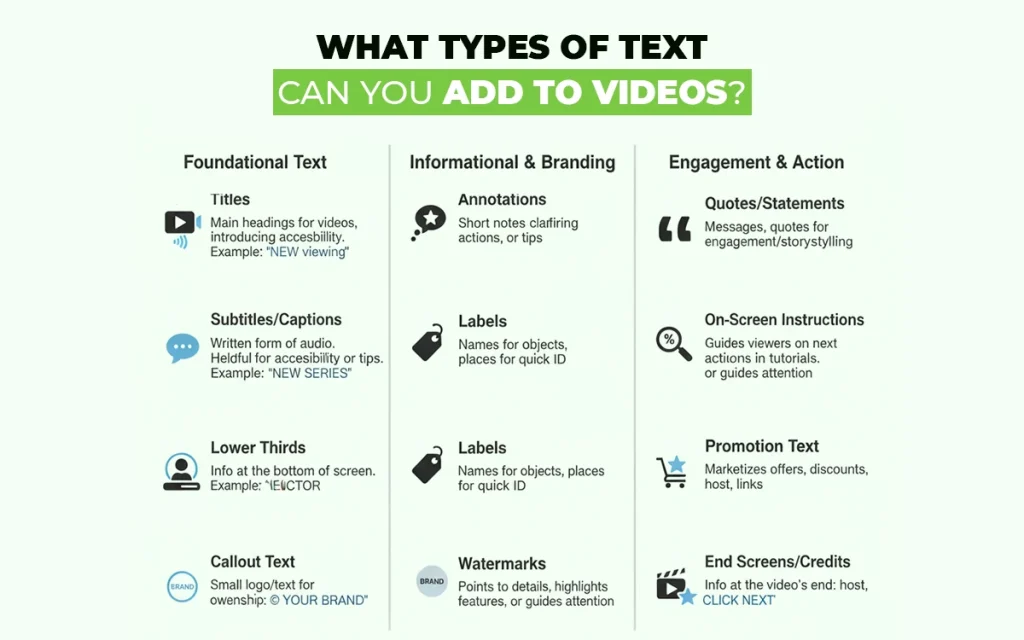
1. Titles: Titles are the main headings for any video, introducing the video topic or new segments inside it. It helps viewers to understand the context.
2. Subtitles: Subtitles, also known as closed captions, are the written form of voices. It helps viewers to stay aligned with the video’s flow. Subtitles are helpful for people who aren’t native speakers or suffering from a hearing impairment, or for videos without sound.
3. Annotations: Annotations refer to the simple and short notes that pop up to clarify actions, steps, or important tips for viewers’ understanding.
4. Lower thirds: Lower-thirds appear in the bottom part of the screen. They show information about the persons, or other short information.
5. Labels: Labels are the names of objects, products, places, or steps in the video so that the viewers quickly understand or identify what the content is about.
6. Watermarks: Watermarks are small logos or texts that show up in the corner of the video. They mark the content for a brand or protect its ownership.
7. Callout text: Callout texts are small bits of text that point to an object or area in the video. These are used for explaining details, highlighting features, or guiding the viewer’s attention.
8. Quotes or statements: Quotations or statements sometimes appear to show messages, statements, or famous quotes to create engagement, connection, or story development.
9. On-screen instructions: On-screen instructions are used for guiding viewers towards the next actions they mostly appear during tutorial content, how-to guides, or educational videos.
10. Promotional text: Promotional texts, also called offer texts, marketize a business with texts such as benefits, discounts, CTA messages, etc.
11. End screens/credits: End screens/credits appear at the end of the video, which include information about the video, such as the host’s name, team members, contact information, links to other videos, etc.
Why Should You Add Text to Your Videos?
You should add text to your videos to make the content sensible and understandable to all types of audiences. Text helps viewers stay aligned and focused with the video narrative regardless of the content origin. So, viewers understand the content better and faster, increasing the number of viewers’ engagement and retention.
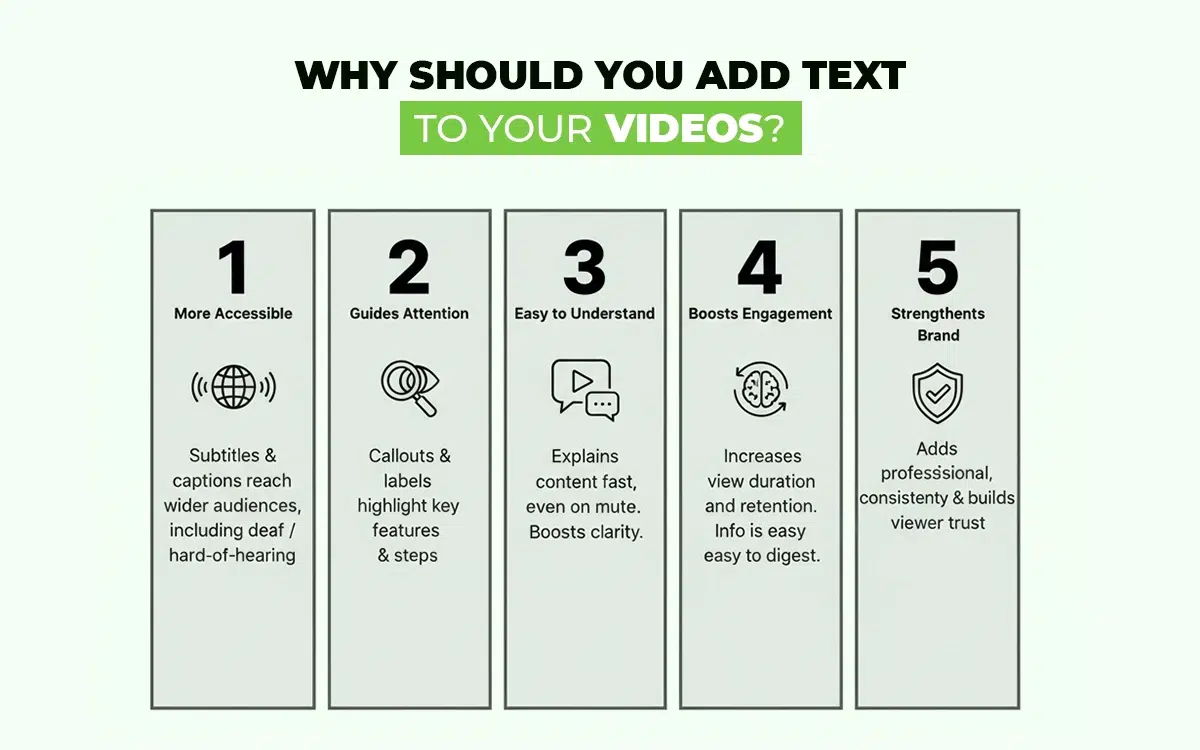
5 key reasons why adding text to a video matters are as follows.
1. Text makes video content more accessible
Adding titles, subtitles, captions, and like texts in a video connects more interested viewers regardless of their location. They find the videos helpful and continue to follow. You get an audience who are from your target region and beyond, as well as people with hearing impairment.
2. Copies guide the viewer’s attention
Text copies in videos, such as callouts, labels, and step-by-step instructions, help viewers stay on track with attention. Those are especially effective for tutorials, product demos, and explainer videos.
3. Video texts make the context easy to understand
Text makes the brand’s message clearer. A simple title or subtitle can explain the topic without extra talking, allowing the audience to skim or watch it on mute.
4. Text overlays increase engagement and viewers’ retention
Text makes video content easy to understand, fast. It breaks down information, so viewers are more likely to watch the full video and remember it.
5. Copies strengthen your brand and trust
Texts such as brand logo, business name, product details, or a clear call-to-action translate as an element of belief for viewers. It creates brand awareness and familiarity both in the target and the general audiences. This also makes your content look more professional and consistent.
Why Does Adding Text Matter in E-commerce Video Marketing?
Adding text matter in e-commerce video marketing to improve accessibility, engagement, and consumption of videos. Product videos with text help online shoppers understand a product’s features, benefits, and reliability faster, even though the videos stay on mute. Text highlights product pricing, specifications, and necessary information to clarify buyers’ confusion.
E-commerce product sellers benefit by getting videos edited with text through guiding their attention and building trust. Clear texts keep viewers’ focus, increase interaction towards sales.
What are the Design Tips for Adding Text in Video?
Here are some design tips for adding text in a video.
- Place your text in the lower-thirds or top corners, not blocking the subject.
- Use a clean and easy-to-read font such as Arial, Open Sans, etc.
- Use short text for quick reading. Text should be consistent in font size, colors, and placement.
- Avoid busy backgrounds if possible. In case of a busy background, add a soft shadow/box behind the text.
- Add contrast to the text to make it pop.
- Take enough screen time to ensure viewers can read it 2 times.
- Use effects that are simple, such as fades or slides.
How Do You Add Text in a Video?
Follow these steps to add text in a video with your preferred video editing software.
Step 1: Add a Text Layer
Open the video editing software and go to the text tool. Create a new text layer above the video.
Step 2: Type and Stylize the Text
Write the message or texts, and choose a readable font. Stick to ‘Sans Serif’ fonts for a clean look, adjust the font size, color, and spacing for a better viewing experience.
Step 3: Set the Text Position
Drag the texts to a clear area, making sure it doesn’t obstruct people’s faces or key elements in the video. Stick to the alignment guides for clean placement.
Step 4: Pay Attention to Readability
If the background looks chaotic or the text doesn’t stand out, add contrast, shadow, stroke, or a light background box to make it pop. When everything is set, trim the text clip to control its timing. If required, add a simple fade or slide if needed.
Step 5: Review and Export
Play the video a few times, check the text appearance, timing, readability, etc. Once the video looks okay, export it in MP4 (H.264) for general use if there are no video format instructions. This video format works on almost all devices and platforms. As for the quality, choosing 1080p or 4K is recommended depending on your project.
How Do You Add Text in Video in Premiere Pro?
To add text in a video through Adobe Premiere Pro, follow these steps.
Step 1: Create a Text Layer
Open Adobe Premiere Pro and use the Type Tool (T). Then, click on the Program Monitor.
Step 2: Type and Edit the Text
Open the Window and then go to Essential Graphics. This option allows you to change font, size, color, and alignment.
Step 3: Position Your Text
Use the Selection Tool to move the text. Or, you can use Effect Controls for precisely placing the text.
Step 4: Adjust for Better Viewing
To provide a better viewing experience, add a shadow, a stroke, or a background box in Essential Graphics. Now, trim the text layer on the timeline and add simple fades or movement using keyframes.
Step 5: Export the Video
Once the text appearance and placement are finalized, export the video in MP4 format. If there are added captions, choose embed or separate file.
How Do You Add Text in Video in Davinci Resolve?
Follow these steps to add text in a video with DaVinci Resolve.
Step 1: Add a Title Clip
Go to Effects Library > Titles. Then, drag Text or Text+ onto the track above your video.
Step 2: Type and Style the Text
Select the title clip and use the Inspector. Now you can edit the text, font, color, and size.
Step 3: Place the Text
To make the right placement, use the viewer handles or Transform settings. Make sure the text is balanced and clear to look at.
Step 4: Adjust Texts for Better Viewing
Consider it from the viewer’s angle and apply outline, shadow, or background box for clarity. Trim the title clip for the text duration on the screen. You can add simple fades or position keyframes if needed.
Step 5: Export the Video
Go to the Deliver page and select MP4 (H.264) and set high resolution (1080p or 4K) to save the file. Click Start Render if you added subtitles, choose to keep them inside the video or save them as a separate file.
How Do You Add Moving Text in a Video?
Add a moving text in a video by following these steps.
Step 1: Add a text layer above your video, and type the text copy.
Step 2: Trim the text clip on the timeline, adjust the timing of appearing and disappearing.
Step 3: Add keyframes for Position (or Opacity) at the start and end. Move the text to create motions such as sliding, rising, etc.
Step 4: Do a final check by playing the video, and tweak timing for smooth movements.
How Do You Add Scrolling Text in a Video?
To add scrolling text in a video, follow this step-by-step guide.
Step 1: Create a long text layer. Place it off-screen where the scroll will start.
Step 2: Stretch the text clip on the timeline so that it matches the duration of scrolling to run.
Step 3: Use keyframes to move the text from the start to the end position (on-screen to off-screen on the other side).
Step 4: Play back to check. Adjust the clip length or keyframe spacing for the text to scroll at a readable pace.
How Do You Add Speech to Text in a Video?
Here is the way to add speech to text in a video.
Step 1: Put the finished video on the timeline in your editing software.
Step 2: Use the speech-to-text feature. There are tools such as Descript or YouTube Studio for automatically creating captions.
Step 3: Review the text before working, fix mistakes, and adjust timing.
Step 4: When the text is added, export as a burned-in subtitle (inside the video) or as an SRT file for separate use.
FAQ’s
What is the easiest way to add text to a video?
The easiest way to add text in a video is to hire video editors to fulfill commercial goals. As marketing material, videos carry a lot of information to convince the viewer. Editors make sure the text appears branded. For personalized uses, you can always rely on an easy-to-use video editor such as Canva or CapCut.
What type of text should I add to my video?
The type of text you should add to your video depends on what message you want to deliver, who your target audience is, and the type of engagement you want; it includes titles, subtitles, product details, or callouts.
How do I make text readable?
To make text readable, use a contrast between the text to the background. Ensure the formats are clean to look at, large enough, but don’t block content, and have enough space. In case of videos having busy content, add a soft shadow, light blur behind the text, or a solid color box in the text.
Which is the best app to add text to videos?
The best apps to add text to videos include Adobe Premiere Pro, Final Cut Pro, CapCut, Canva, etc.
Can I add moving text in a video?
Yes, you can. Moving texts or animated texts appear as they fade, slide, move, or bounce as the screen changes. You can use video editing apps such as Adobe Premiere Pro, CapCut, and Canva to perform this task.
Can I add subtitles automatically?
Yes, you can add subtitles automatically by using YouTube Studio, CapCut, Descript, and Premiere Pro-like tools. They allow auto-generated subtitles using speech-to-text. Once you review and fix any small mistakes, you can get the result you want.
Which font is best for video text?
The best font for video text is sans-serif because of its simple and clean look. Use Arial, Helvetica, Open Sans, Roboto, Montserrat, etc. These fonts appear consistent and stay readable even on small screens like phones.
How long should text be on screen?
The duration of how long text should stay on screen is the time it takes for a reader to read it 2 times. You will see video texts stay on screen for around 2 to 5 seconds before the next texts appear. However, depending on the text length, the timing will vary; short texts appear for a short time, and longer sentences remain for longer than 5 seconds.